

You find the presentation you need. The title matches your research. The slides are clear, the charts are useful, and the information could save you hours of work. Then you look for a way to save it—and discover that the deck is available to view but not conveniently available to download.
That small gap between “I can see this presentation” and “I can keep a usable copy” is the reason so many people search for a SlideShare downloader.
Most of those users are not looking for a complicated conversion platform. They are not trying to install a desktop program, create another account, or navigate a chain of misleading buttons. Their goal is much simpler: paste a public SlideShare link, choose PowerPoint or PDF, and save a clean, high-quality file.
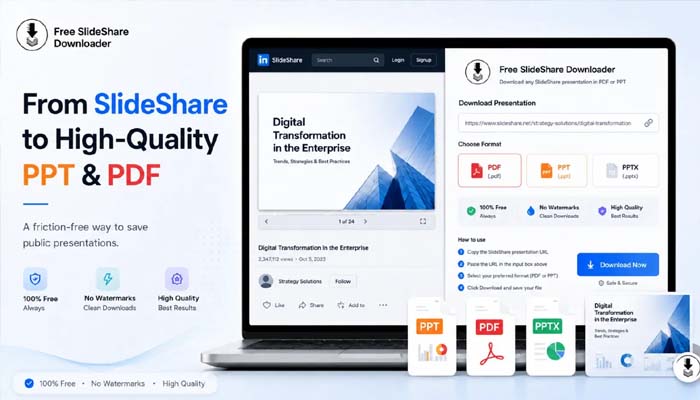
A focused tool such as Free SlideShare Downloader is built around that exact task. It processes publicly accessible SlideShare presentations into PPT, PPTX, or PDF files through a browser-based workflow, without requiring registration or payment.
This article examines what a reliable SlideShare download experience should look like, how to choose the right output format, what “high quality” actually means, and how to avoid the common mistakes that turn a simple download into a frustrating process.
What People Really Want from a SlideShare Downloader
Search phrases reveal intent. When someone searches for “SlideShare downloader free,” “SlideShare PPT downloader,” “SlideShare free download,” or “download PDF from SlideShare free,” the wording changes, but the underlying need remains consistent.
The user has already found a presentation. Discovery is finished. The remaining task is access.
That access usually needs to meet five conditions:
- The presentation should be downloadable without a paid subscription.
- The process should not require an account.
- The output should be available in a useful format.
- The slides should remain clear and readable.
- The workflow should work without technical knowledge.
This is why the best downloader experience feels almost invisible. A user should not have to learn how the tool works internally. The interface should ask only for the information necessary to complete the task: the public SlideShare URL and the preferred file format.
Anything beyond that should have a clear purpose.
Why Browser Viewing Is Not Always Enough
Browser viewing is useful for quick discovery, but it becomes limiting when a presentation must be studied, printed, presented, or accessed repeatedly.
A student may want to highlight a lecture deck. A trainer may need research material before a workshop. A marketer or designer may want to examine how a presentation structures information. A business team may need a reference during a meeting with unreliable internet.
In each case, the real need is not merely to see the slides once. It is to keep them in a stable format that can be opened, organized, annotated, and revisited through familiar software.
Why Screenshots Are a Poor Substitute
Screenshots appear simple, but a long deck may require dozens of separate captures. Each image must be cropped, named, ordered, and stored. Small text may become blurry, browser controls can enter the frame, and the content becomes harder to search or print.
A downloader prepares the public slide sequence as one organized document or presentation file. The result is easier to open, share, archive, and revisit—especially when the source contains many slides.
The Ideal Download Workflow
A good tool should reduce the process to a small number of predictable actions.
1. Open the Public Presentation
Start on the individual SlideShare presentation page. Confirm that the deck loads publicly and that it is the exact resource you want.
This check prevents two common errors: copying a search-results URL instead of the presentation URL and downloading the wrong deck because several presentations have similar titles.
2. Copy the Full URL
Copy the address from the browser bar. On Windows, use Ctrl+C; on macOS, use Command+C. On a phone, tap the address bar and select the copy command.
The link should point to the specific SlideShare presentation. Avoid copying an image address, an embedded preview link, or an unrelated sharing redirect.
3. Paste the Link into the Tool
Open the downloader and paste the copied URL into the input field. Check that there are no accidental spaces before or after it.
This is the core of a good SlideShare downloader online workflow: the source URL is enough. The user should not need to upload files, connect a social account, submit an email address, or provide SlideShare credentials.
4. Select PPT, PPTX, or PDF
Choose the format based on what you need to do with the file. PDF is generally best for reading and stable layout. PPT or PPTX is more suitable when presentation functionality or legitimate editing is required.
5. Process and Save the File
Start the download and allow the tool to process the deck. When the file becomes available, save it to a clear location on your device.
Open it immediately. Confirm that the slide order is correct, the text is readable, and the file type matches the option you selected.
The workflow should feel this direct from beginning to end. A user who came for a SlideShare free download should leave with the requested presentation—not a browser extension, unrelated application, or collection of low-resolution images.
When PDF Is the Better Choice
PDF is the most practical output for users who want to read, study, print, annotate, or archive a presentation.
It preserves the visible slide sequence in a stable document. The layout is less likely to shift because of missing fonts or differences between presentation applications. PDF files also open easily on most phones, tablets, laptops, and desktop computers.
Choose PDF when your priorities include:
- Reading the presentation offline
- Printing some or all slides
- Highlighting or adding comments
- Sharing a stable reference copy
- Keeping the visible layout consistent
- Opening the deck without PowerPoint
- Storing the presentation in a research library
Users specifically looking to download a PDF from SlideShare for free usually care more about clarity and portability than editing. For them, PDF removes unnecessary complexity.
It is important to understand that a PDF is a fixed-format representation. Animations, transitions, embedded videos, and some interactive elements may not behave as they do in the online presentation. The visible content remains the main value.
When PPT or PPTX Makes More Sense
PowerPoint formats are better suited to users who need presentation-oriented functionality.
A PPT or PPTX file can be opened in compatible software, displayed as a slideshow, reorganized, and—depending on how the source material is processed—edited to some extent. This is useful when saving your own published deck, preparing an authorized adaptation, adding private study notes, or examining slide structure.
Choose PowerPoint when you need to:
- Present slides from a compatible application
- Rearrange a deck for personal or permitted use
- Add notes to your own copy
- Study the construction of a presentation
- Work with your own SlideShare upload
- Make changes that the original creator has authorized
- Preserve a presentation-based workflow rather than a document-based one
A practical SlideShare PPT downloader process should make the format choice explicit. Users should know whether they are receiving PPT, PPTX, or a converted slide file before the download begins.
There is one important limitation: an output file may not reproduce the original authoring file perfectly. Some elements can be flattened, grouped, or represented as slide images. A downloadable PPT can still be useful for presenting and organizing, but users should not assume that every chart, font, animation, or object will remain independently editable.
What “High Quality” Should Mean
“High quality” is often used as a marketing phrase without explanation. For a SlideShare downloader, it should refer to specific qualities that the user can inspect.
Readable Text
Headings, labels, captions, and smaller body text should remain legible at normal viewing size. A deck that looks acceptable only when heavily zoomed out is not a useful result.
Clear Charts and Diagrams
Presentation value often sits inside graphs, process maps, tables, and diagrams. Their labels and lines should not collapse into pixelated blocks.
Correct Slide Dimensions
Slides should not be stretched, squeezed, or cropped. The aspect ratio of the original presentation should be respected as closely as possible.
Complete Slide Order
The first slide should remain first, the final slide should remain last, and no pages should be duplicated or unexpectedly omitted.
Clean Output
A downloader should not place a new watermark over the creator’s slides. It should also avoid adding promotional pages that were not part of the public presentation.
Sensible File Size
Quality and file size must be balanced. A very small file may indicate aggressive compression; an unnecessarily huge file can be difficult to store or share. The correct result preserves useful detail without creating waste.
The source itself sets an upper limit. If a presentation was uploaded with blurry images or tiny text, no downloader can reconstruct missing detail. A trustworthy tool should preserve available quality, not promise to invent resolution that the source does not contain.
Why “No Login” Is More Than a Convenience
Registration introduces friction into a task that may take less than a minute.
A user who wants one public deck should not have to create a password, verify an email, share a phone number, or connect a social profile. Each additional step increases abandonment and creates another privacy decision.
A no-login workflow is also practical for users on shared, school, library, or temporary devices. They can process the public presentation without leaving an account signed in or exposing credentials.
This does not mean all account systems are bad. Accounts are useful when a service needs saved history, collaboration, private storage, or personalization. They are unnecessary when the product’s central promise is immediate conversion of a public URL.
For this reason, an online SlideShare downloader without registration is a better fit for one-time and occasional downloads. The tool asks for what the task needs and nothing more.
Browser-Based Tools Versus Installed Software
A browser-based downloader has several practical advantages.
It works across operating systems without separate installers. Updates happen on the service side rather than requiring the user to download a new version. There is no permanent application consuming storage, adding startup processes, or requesting system permissions.
This matters because “free download SlideShare downloader” searches can expose users to software that solves a browser task by introducing a much larger installation. A simple presentation conversion should not require an executable file.
A browser tool also fits mobile use. The user can copy a link from a mobile browser, paste it into the downloader, choose the format, and save the result through the device’s normal download system.
Installed software may be justified for bulk processing, advanced file editing, organizational controls, or offline conversion of files already stored locally. It is excessive for the common task of saving one publicly accessible SlideShare presentation.
Desktop and Mobile Downloads
On a desktop, copy the full presentation URL from the address bar, paste it into the downloader, select the format, and save the result. Open the Downloads folder and verify the file before closing the source page.
Rename useful files with a clear pattern such as topic-title_creator_format. Descriptive names prevent research files from disappearing into a folder filled with generic downloads.
The same browser-based process works on phones and tablets. After processing, check the device’s Files or Downloads area. PDFs usually open in a document reader, while PPTX files may require PowerPoint, Google Slides, Keynote, or another compatible application.
On slower mobile connections, avoid tapping the download button repeatedly. Doing so can create duplicate requests or multiple copies of the same file.
Trust Signals to Check Before Using Any Downloader
A clean interface is helpful, but trust should come from behavior and transparency.
Look for the following:
The Website Uses HTTPS
A secure browser connection is a basic expectation. The address should begin with HTTPS and should not trigger a browser security warning.
It Does Not Request SlideShare Credentials
A third-party downloader should never need your SlideShare password to process a public link.
The Requested File Has the Expected Extension
PDF output should end in .pdf. PowerPoint output should normally end in .ppt or .pptx. An unexpected .exe, .msi, or script file is not the presentation you requested.
The Tool Explains Its Scope
A responsible service should say that it works with public presentations. It should not claim to unlock private, deleted, password-protected, or otherwise restricted content.
The Site Provides Help and Legal Information
A help center, privacy policy, terms, disclaimer, and contact route make the service easier to evaluate. These pages clarify how the product is intended to be used and where its limitations lie.
It Avoids Fake Scarcity
A basic downloader should not pressure the user with invented countdowns, false virus warnings, or claims that a file will disappear in seconds.
Trust is built by completing the promised task predictably.
Common Problems and Practical Fixes
The Tool Says the URL Is Invalid
Return to the individual presentation page and copy the link again from the browser address bar. Remove spaces, tracking fragments, or accidental punctuation added when the URL was pasted.
Make sure the presentation is publicly viewable. A private or deleted page cannot be processed as a normal public deck.
Processing Does Not Start
Refresh the page and try once more. Temporarily disable an extension if it is blocking essential scripts. A private browsing window or another updated browser can help identify extension-related problems.
Do not submit the same URL repeatedly in rapid succession.
The Download Is Incomplete
Check the original presentation to confirm how many slides it contains. If the output is unusually small or will not open, the download may have been interrupted. Delete the incomplete file and retry on a stable connection.
The Layout Looks Different in PowerPoint
Missing fonts can change line breaks, spacing, and alignment. Open the same deck as PDF when preserving the visible layout matters more than editing.
The Slides Look Soft at High Zoom
Compare them with the online source. Normal zoom is the most useful test. If the original contains low-resolution graphics, the downloaded file will reflect that limitation.
Video or Animation Is Missing
PDF cannot reproduce presentation animation as a normal moving sequence. Converted PowerPoint files may also lack media that was embedded or streamed separately. Keep the original URL when multimedia is important.
The File Downloaded Twice
Delete the duplicate and avoid clicking multiple download buttons while processing is underway. Browsers may append numbers such as (1) or (2) to repeated filenames.
Useful, Responsible Ways to Use Downloaded Presentations
Downloading a public presentation and owning its content are not the same thing.
A saved copy is useful for personal study, offline reading, research, classroom preparation, accessibility, and backup of your own work. It can also help you identify sources, understand a framework, or study how an experienced presenter communicates an idea.
Responsible practices include:
- Keeping the creator’s name and source URL
- Citing the original presentation when using its information
- Checking the deck’s stated license
- Asking permission before substantial republication or commercial reuse
- Creating your own explanation rather than copying slide text
- Verifying statistics through original sources
- Avoiding removal of author credit
- Never reselling or reuploading someone else’s complete deck as your own
The downloader is an access utility, not a transfer of authorship. The person or organization that created the presentation remains the source to credit.
Who Gets the Most Value from This Workflow?
Students can keep lecture decks and revision material available offline. Teachers and trainers can collect references while developing original lessons. Researchers can identify terminology, experts, datasets, and primary sources. Professionals can prepare for meetings or travel without depending on connectivity.
Designers and marketers can also study hierarchy, pacing, charts, and content structure. The goal should remain learning and informed research—not copying another creator’s identity or republishing protected work.
A Better Standard for “Free”
A genuinely free downloader does more than remove a price tag.
It avoids hidden subscriptions. It does not force account creation. It does not require installation. It does not hold the final file behind an unexpected payment screen. It does not add a watermark that damages the presentation. It does not make the user complete unrelated tasks.
The strongest free experience is transparent from the first click:
- Public SlideShare link in
- Preferred format selected
- Clean file out
That is the product promise users are expressing through search terms such as “SlideShare downloader free” and “SlideShare free download.” They are asking for access without friction, not for an overloaded platform with features they never requested.
Questions Users Commonly Ask
Can I download a SlideShare presentation without creating an account?
A dedicated public-link downloader can process supported SlideShare presentations without requiring user registration. You need the URL of the publicly accessible deck.
Can I save the presentation as PDF?
Yes. PDF is the preferred choice for reading, printing, annotation, and stable offline access.
Can I save it as PPT or PPTX?
Supported presentations can be prepared in PowerPoint-oriented formats. The exact level of editability may vary according to the source.
Will the file contain a watermark?
A quality-focused downloader should not add its own watermark.
Can it access private presentations?
A legitimate public downloader should not claim to access private, deleted, or protected material.
Does it work on mobile?
Yes. A browser-based workflow can be used on modern phones and tablets, with the result stored in the device’s Files or Downloads area.
Why choose PDF instead of PPT?
PDF is more consistent for viewing, while PPT is more flexible for presentation-related work.
Can I reuse the downloaded slides?
That depends on the creator’s license, the nature of the content, and your intended use. Personal access is different from redistribution, republication, resale, or commercial adaptation.
The Best Tool Is the One That Gets Out of the Way
The ideal SlideShare downloader does not turn a small task into a new project.
It does not ask the user to understand conversion technology. It does not bury the format choice. It does not demand credentials or install extra software. It does not produce a folder of screenshots when the user needs one organized file.
It takes a public SlideShare URL and returns a usable PPT, PPTX, or PDF.
That directness is the real value. It lets a student continue studying, a teacher continue preparing, a researcher continue reviewing, and a professional continue working without remaining tied to a browser tab.
When the download button is missing or inconvenient, the answer should not be more friction. It should be a clear, reliable route from the public presentation to the high-quality file the user actually needs.
